




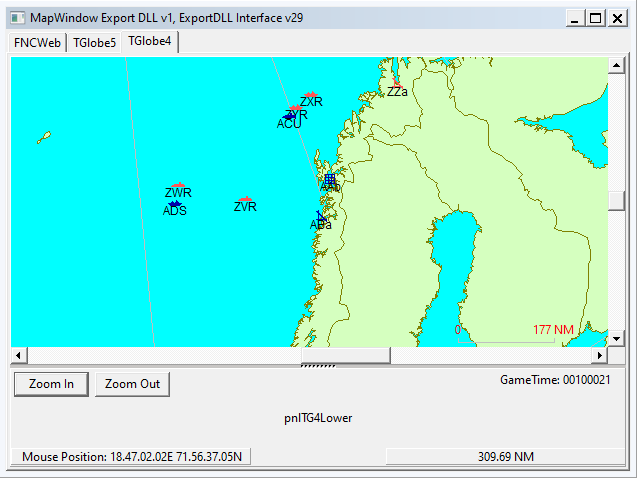
HC ExportDLL to provide a globe map interface
2022-07-07
Purpose:
To provide a globe view of the world to allow global reach during
scenarios and BattleSets.
Original Author:
Anthony Eischens
Contributors:
Compiled with:
Lazarus 4.6
Third party controls:
Stratsims OSS shared pascal code
https://tarzan.tgp.net/svn/StratsimsOSS/HC/shared/pascal/trunk
Stratsims modified TGlobe 4
License:
MIT (see License.txt)
What's New in Version 012
Released
MapWindow 20260322 2025.025+
Incremented DLL Version to 12
Unknown side display — in Player mode, groups whose side has not
been identified (SideKnown flag not set) now render with yellow
(Unknown) icons, arrows, and track lines instead of their actual
side color. Course and range ring side checkboxes filter by display
side. God mode and own-side groups always show actual side colors.
Uncertainty zones — in Player mode, groups detected without exact
position (ShowUncertain set, ShowExact not set) display a diamond
outline from the group's UncertaintyRegion. The group icon is
centered on the diamond rather than at the actual position. Diamond
color matches the display side. Transitions automatically when
detection quality changes.
Player mode course restriction — "All Groups" course display mode
now only shows courses for the player's own side. Enemy group
courses are hidden to prevent leaking planned movement intel.
God mode still shows all groups' courses.
-
 1
1