kmart494
Members
-
Joined
-
Last visited
Everything posted by kmart494
-
I would like to know how important the turn replay and historic movement track features are to your experience using SimPlot with Harpoon V. The upcoming issue is the complexity of not only the code to execute turn replay, but also the amount of data that must be stored in the way of historic movement tracks to support turn replay. The more features I add to SimPlot, the more coding that must be done and the more data that must be collected to support turn replay. Already I have eliminated range arcs/circles from historic consideration. That means the arcs/circles will not appear and disappear during the course of replay, but rather they will stay on/off based on their last status. I am in the process of expanding the formation editor features, but it occurs to me a formation will change its composition (units and their locations within the formation) over time. Even a change to the formation leader will cause the turn replay to not function right unless the changes are tracked by time. (Especially because all the formation bearings and distance are based on the leader.) This requires additional code and data storage (larger file sizes) to implement correctly. I have to admit I really like the concept of a live turn replay. It was originally a response to players of multi-player games that felt disconnected by the multi-player experience (processing multiple turns between player interactions). The replay would give a player an opportunity to "catch up" with the action since the last turn. Perhaps an alternative could be offered in the way of screenshots saved into Red, Blue, and All folders based on the referee "Show Side" setting. Movement tracks are s lightly lesser issue for coding, but they are a huge issue for file sizes. Already I have begun offering players the option to not save movement tracks in their turn files. The movement tracks do at least allow players to "turn back the clock" in case of an error during movement. That means tracking movement for at least one turn. But, I would like to know if displaying the total historic tracks during a scenario is useful to you. Kevin
-
I did not yet incorporate that feature, so it is disabled for now. But, it will come soon.
-
SimPlot MapMaker for MacOS View File This is an experiment in using SimPlot MapMaker on Intel 64 bit MacOS. The dmg file will download but must be activated by clicking on it in the download pane of the browser or double-click on it using Finder (in the Downloads folder). The dmg will open as an attached device (sorry--there is no installer yet for SimPlot MapMaker). If a window pops up showing the SimPlot MapMaker.app file, please close it. Running SPMM from that window will only provide a temporary storage space for the application. Using Finder, create a new sub-folder in your Applications folder (ex: SimPlot MapMaker). Drag and drop the SimPlot MapMaker.app file from the attached device to your new folder. Close the attached device (click the close button next to it in Finder). You are now ready to use SimPlot MapMaker by double-clicking the SimPlot MapMaker.app file. You may get a security warning, but allow it to continue opening the application. This is a beta version and most things work. You must have a png background image (e.g. from Google Maps). You must also measure the pixels per nautical mile of the image. When you get the project started, you can draw polygons on top of the background. I use it to create land polys with other overlays. As an option, the original background can be used as a part of the final map (using the image with some overlays, but not a complete repaint). Submitter kmart494 Submitted 12/11/2021 Category Application/Tools/Mods/Docs
-
This is an experiment in using SimPlot MapMaker on Intel 64 bit MacOS. The dmg file will download but must be activated by clicking on it in the download pane of the browser or double-click on it using Finder (in the Downloads folder). The dmg will open as an attached device (sorry--there is no installer yet for SimPlot MapMaker). If a window pops up showing the SimPlot MapMaker.app file, please close it. Running SPMM from that window will only provide a temporary storage space for the application. Using Finder, create a new sub-folder in your Applications folder (ex: SimPlot MapMaker). Drag and drop the SimPlot MapMaker.app file from the attached device to your new folder. Close the attached device (click the close button next to it in Finder). You are now ready to use SimPlot MapMaker by double-clicking the SimPlot MapMaker.app file. You may get a security warning, but allow it to continue opening the application. This is a beta version and most things work. You must have a png background image (e.g. from Google Maps). You must also measure the pixels per nautical mile of the image. When you get the project started, you can draw polygons on top of the background. I use it to create land polys with other overlays. As an option, the original background can be used as a part of the final map (using the image with some overlays, but not a complete repaint).
-
A new problem was discovered with SimPlot 2.3 Build 15. If you specified altitudes or depths with your waypoints, then those values were not reloading correctly and causing the file not to load. The altitude/depth values became multiplied every time you saved the scenario, and the values grew until they broke the JSON parser. The easiest way to self-correct your files is to perform a text search for "AltitudeDepth" (this will appear in the PastWaypointArray and FutureWaypointArray JSON items for each unit). All waypoints have this attribute, but the problem will only occur with air and subsurface units. Anyway, any value you find after "AltitudeDepth" that is wacky should be replaced with a zero. Please keep in mind the value will normally have an extra three zeros since it is supposed to track the altitude/depth to three decimal places (after conversion from a decimal to integer). Anything that is greater than that has been multiplied too much and should be replaced with a zero. Build 17 for Win10 is ready for download. The MacOS version will follow shortly.
-
I uploaded a new version of beta 15 for MacOS. This one is code signed and notorized (I was able to iron out the problems with the Apple developer process). Please follow the instructions on the download page as I do not yet have an installer for the app.
-
DNAB, I uploaded a new version. please give it a try and let me know if it works. I was not able to replicate the problem you are having. The only difference I noticed is your Customize Color window is slightly smaller than mine. I am uncertain if some kind of settings on your machine would cause that (system font size, for example). Anyway, I suspect the problem may be with the background paint event trying to paint a non-existent cell after the last one. Kevin
-
View File Gulf of Sidra 1 This map depicts a small area of the Gulf of Sidra near the city of Bengazi, Libya. Submitter kmart494 Submitted 11/20/2021 Category Maps
-
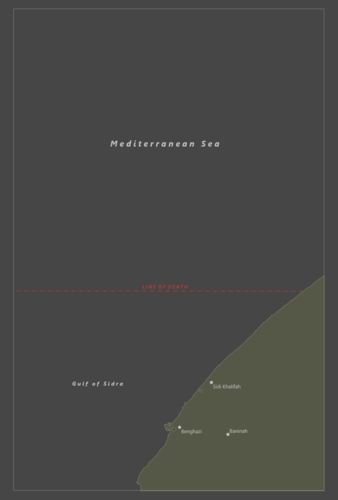 This map depicts a small area of the Gulf of Sidra near the city of Benghazi, Libya. This map is compatible with SimPlot 2.3+.
 -
SimPlot 2.3 Beta for MacOS View File This is an experiment in using SimPlot on Intel 64 bit MacOS. The dmg file will download but must be activated by clicking on it in the download pane of the browser or double-click on it using Finder (in the Downloads folder). The dmg will open as an attached device (sorry--there is no installer yet for SimPlot). If a window pops up showing the SimPlot2.app file, please close it. Running SP2 from that window will only provide a temporary storage space for the application. Using Finder, create a new sub-folder in your Applications folder (ex: SimPlot2). Drag and drop the SimPlot2.app file from the attached device to your new folder. Close the attached device (click the close button next to it in Finder). You are now ready to use SimPlot by double-clicking the SimPlot2.app file. You may get a security warning, but allow it to continue opening the application. Submitter kmart494 Submitted 11/12/2021 Category Application/Tools/Mods/Docs
-
This is an experiment in using SimPlot on Intel 64 bit MacOS. * Please note: I do not have an Apple Developer ID anymore, and this may affect program execution (whether or not it opens). * Also please note: There is a bug in this version that prevents custom maps from being displayed after you close the program (and restart later). This issue is addressed in the Windows version, but it was not addressed in the Mac version before my Apple Developer ID expired. Therefore, this problem cannot be fixed. The dmg file will download but must be activated by clicking on it in the download pane of the browser or double-click on it using Finder (in the Downloads folder). The dmg will open as an attached device (sorry--there is no installer yet for SimPlot). If a window pops up showing the SimPlot2.app file, please close it. Running SP2 from that window will only provide a temporary storage space for the application. Using Finder, create a new sub-folder in your Applications folder (ex: SimPlot2). Drag and drop the SimPlot2.app file from the attached device to your new folder. Close the attached device (click the close button next to it in Finder). You are now ready to use SimPlot by double-clicking the SimPlot2.app file. You may get a security warning, but allow it to continue opening the application.
-
SimPlot 2.3 for Win10 View File Introduction SimPlot (short for Simple Plotter) is a utility program that supports Harpoon games by automating the movement process in a graphical environment. SimPlot uses a simplified X, Y coordinate system that makes range and bearing calculations easier. North is always at the top of the screen, and the 0, 0 coordinate is the center of the "game area". Each whole number of the coordinate system represents one nautical mile. Presently, SimPlot supports the display and movement for many of the common unit types found in Harpoon: surface ships, subs, aircraft, helicopters, missiles, and torpedoes. Additional non-moving unit types that can be displayed are sonobuoys, reference points, and bases. Units can be displayed using the NTDS or Common Warfighting Symbology styles. All units are either red player, blue player, or referee-controlled neutral. Games in progress can be saved and reloaded using simple JSON text files that SimPlot creates. There is even an option to replay the movement from a current or saved game, so the battle can be reviewed at a later time. What SimPlot Does SimPlot allows users to add, modify, and delete units from the screen via pop-up forms. The screen can be zoomed in or out using the keyboard or mouse wheel, and it can also be panned using the arrow keys or right-mouse clicks. Units are selectable and additional data can be displayed, such as the range and bearing to other units on screen. Units can be given additional graphics such as sensor/weapon arcs, and ES/sonar bearings. The arcs are typically used for reference (e.g. when will another unit be in detection or weapons range), and the ES/sonar bearings are used to represent passive detections. These graphics can also be colored and labeled for easier reference. Scenarios can be played on a blank screen or on maps created from bitmap images. The maps are just a background image that can give players a sense of location, but they do not by themselves enforce Harpoon rules regarding terrain. SimPlot can be used for single or multiple player scenarios. In single-player games, the player implements his own orders and will see the results immediately. Multiplayer games will need a referee to carry out the player's orders. The referee will run the game turns until players need to interact with the situation, and then sends player-only versions of the game file. The players will then communicate orders to the referee (via email for example) so the units can be updated and the game continues. Units can be assigned attributes of "perception" by the referee that denies an opposing player information about enemy units. The visible attributes of a newly detected unit can be restricted in items such as location, course, speed, class, or size. Even whose side it's on can be restricted until such time that additional information is available per Harpoon detection rules. Perception plays a great role in enforcing fog-of-war for multiplayer refereed games. What SimPlot Doesn't Do SimPlot simply uses computer graphics to track the location, course, speed, etc. of units in a scenario. It does not roll dice for you, neither does it implement specific Harpoon rules. SimPlot is therefore not an actual "game program". A copy of the Harpoon rules is required to use SimPlot to its fullest potential. Harpoon is a registered trademark of Larry Bond and Chris Carlson. Getting Started System Requirements SimPlot is available for Windows PC (64 bit). This app was tested with Win10. The program will run in less than 100 MB of memory (depending on map size). There is no special video card or monitor requirement. A mouse or touchpad is needed for selecting and editing units. An Internet connection is necessary for downloading the program plus supporting scenarios, maps, and documentation. Installation Unzip the downloaded SimPlot file into its own folder. No other special installation is required. Just double-click the SimPlot.exe file to start the program. Once SimPlot is started for the first time, it will automatically create "Scenarios" and "Maps" folders within the program's home folder if they do not already exist. Existing folders will not be overwritten. The Scenarios folder will hold scenario sub-folders and turn files. The Maps folder will contain the map image and configuration files. Submitter kmart494 Submitted 10/31/2021 Category Application/Tools/Mods/Docs
-
Introduction SimPlot (short for Simple Plotter) is a utility program that supports Harpoon games by automating the movement process in a graphical environment. SimPlot uses a simplified X, Y coordinate system that makes range and bearing calculations easier. North is always at the top of the screen, and the 0, 0 coordinate is the center of the "game area". Each whole number of the coordinate system represents one nautical mile. Presently, SimPlot supports the display and movement for many of the common unit types found in Harpoon: surface ships, subs, aircraft, helicopters, missiles, and torpedoes. Additional non-moving unit types that can be displayed are sonobuoys, reference points, and bases. Units can be displayed using the NTDS or Common Warfighting Symbology styles. All units are either red player, blue player, or referee-controlled neutral. Games in progress can be saved and reloaded using simple JSON text files that SimPlot creates. There is even an option to replay the movement from a current or saved game, so the battle can be reviewed at a later time. What SimPlot Does SimPlot allows users to add, modify, and delete units from the screen via pop-up forms. The screen can be zoomed in or out using the keyboard or mouse wheel, and it can also be panned using the arrow keys or right-mouse clicks. Units are selectable and additional data can be displayed, such as the range and bearing to other units on screen. Units can be given additional graphics such as sensor/weapon arcs, and ES/sonar bearings. The arcs are typically used for reference (e.g. when will another unit be in detection or weapons range), and the ES/sonar bearings are used to represent passive detections. These graphics can also be colored and labeled for easier reference. Scenarios can be played on a blank screen or on maps created from bitmap images. The maps are just a background image that can give players a sense of location, but they do not by themselves enforce Harpoon rules regarding terrain. SimPlot can be used for single or multiple player scenarios. In single-player games, the player implements his own orders and will see the results immediately. Multiplayer games will need a referee to carry out the player's orders. The referee will run the game turns until players need to interact with the situation, and then sends player-only versions of the game file. The players will then communicate orders to the referee (via email for example) so the units can be updated and the game continues. Units can be assigned attributes of "perception" by the referee that denies an opposing player information about enemy units. The visible attributes of a newly detected unit can be restricted in items such as location, course, speed, class, or size. Even whose side it's on can be restricted until such time that additional information is available per Harpoon detection rules. Perception plays a great role in enforcing fog-of-war for multiplayer refereed games. What SimPlot Doesn't Do SimPlot simply uses computer graphics to track the location, course, speed, etc. of units in a scenario. It does not roll dice for you, neither does it implement specific Harpoon rules. SimPlot is therefore not an actual "game program". A copy of the Harpoon rules is required to use SimPlot to its fullest potential. Harpoon is a registered trademark of Larry Bond and Chris Carlson. Getting Started System Requirements SimPlot is available for Windows PC (64 bit). This app was tested with Win10. The program will run in less than 100 MB of memory (depending on map size). There is no special video card or monitor requirement. A mouse or touchpad is needed for selecting and editing units. An Internet connection is necessary for downloading the program plus supporting scenarios, maps, and documentation. Installation Unzip the downloaded SimPlot file into its own folder. No other special installation is required. Just double-click the SimPlot.exe file to start the program. Once SimPlot is started for the first time, it will automatically create "Scenarios" and "Maps" folders within the program's home folder if they do not already exist. Existing folders will not be overwritten. The Scenarios folder will hold scenario sub-folders and turn files. The Maps folder will contain the map image and configuration files.
-
SimPlot MapMaker for Win10 View File This is a utility program that creates maps for use in SimPlot 2.3+ Please see the included Release Notes.txt file to get started. This is a Beta release. If you find any errors or bugs, let the author know either in the Harpoon forum or on the Discord Harpoon 5 Multiplayer channel. Submitter kmart494 Submitted 10/30/2021 Category Application/Tools/Mods/Docs
-
This is a utility program that creates maps for use in SimPlot 2.3+ Please see the included Release Notes.txt file to get started. This is a Beta release. If you find any errors or bugs, let the author know either in the Harpoon forum or on the Discord Harpoon 5 Multiplayer channel.
-
You must have one heck of a wide-screen monitor. 🤩
-
Colonel, A mapmaking utility is under development that would allow players to create their own maps to include depth polygons such as you see in the Baltic map. The depth data comes from NOAA bathymetric maps that were traced over using Affinity Designer. The file is then exported to SVG and converted to a SimPlot map using a special app I created. At present, this process is not 100% reliable and is not available to the public. I do not have a timetable for the completion of my mapmaking utility. Kevin
-
SimPlot version 2.2.3 is ready for download. Fixed Exception at Load Move Orders menu item if you canceled the file chooser. Units without waypoints did not update correctly during replay. Reference Points/Datums did not display correctly at the Reduced symbol size. Added Depth scale resizes with the change in Symbol Scale. Symbols now display the interior icon at the Reduced symbol size. Author contact info added to the About SimPlot window.
-
SimPlot version 2.2.2 is ready for download. Sorry for the rapid-fire update, but a flaw in the unit copy/paste method prevented sensors and weapons from being copied.
-
SimPlot 2.2.1 is now available in the downloads section. Fixed Problems arising from international decimal separators prevented saving and reloading waypoints. The same problems prevented exchanging turn files between US and non-US players. Map zoom using the mouse wheel did not rescale the map correctly. Pasting some units caused an application crash. MacOS--the HTML help files were not displaying in the help window. Added Using the Customize Display menu, players may now turn off weapon/sensor/cursor label background rectangles. Significantly increased the number of exception catches to prevent application crash. Most exceptions will now add a notation to the app_error_log file. The log is generic, but it will aid in troubleshooting. Some exceptions will display a message box to let you know a problem occurred.
-
SimPlot 2.2 is now available in the downloads section.
-
Version 2 of the scenario file includes the East and West German ships on the map. The maximum number of them are present, and players may delete any that are not needed for their scenario. Note: The spacing of the ships is 1/4 nautical mile (500 yards). This is because the visibility is poor, and they must be more than 250 yards apart or there is a risk of collision.
-
View File Bugout This is the SimPlot setup file for the Harpoon V scenario "Bugout" that is featured in The Naval SITREP issue #60 (April 2021). The installations are on the map, but the ships are not. This way, players may choose where to place them. All the naval ships and missiles that may be used in the scenario are importable, and are located in the Units folder. Civilian ships are an optional rule, but they are not included in the Units folder. They are very simple to create, with the only differences being the type and maximum speed (and size class, but that is not tracked in SimPlot). This scenario is compatible with SimPlot version 2.1.1. Submitter kmart494 Submitted 06/14/2021 Category Scenarios
-
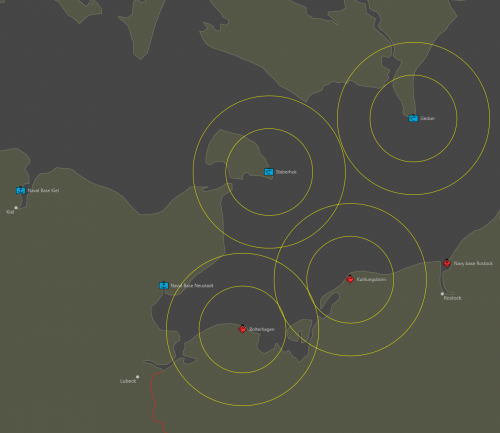 This is the SimPlot setup file for the Harpoon V scenario "Bugout" that is featured in The Naval SITREP issue #60 (April 2021). The installations are on the map, but the ships are not. This way, players may choose where to place them. All the naval ships and missiles that may be used in the scenario are importable, and are located in the Units folder. Civilian ships are an optional rule, but they are not included in the Units folder. They are very simple to create, with the only differences being the type and maximum speed (and size class, but that is not tracked in SimPlot). This scenario is compatible with SimPlot version 2.1.1.
 -
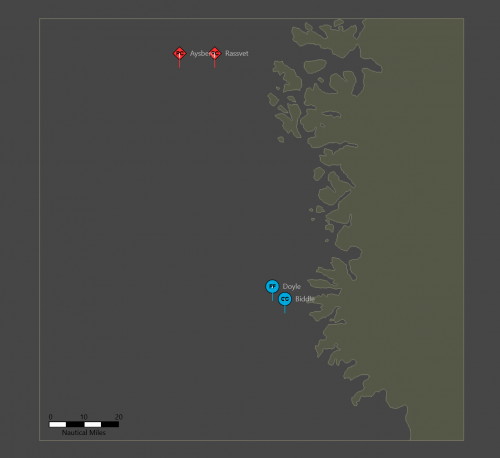 Guardian is the scenario featured in the Harpoon V Jumpstart guide. The included map is a standard SimPlot version, unlike the Jumpstart version which was modified for printer-friendly colors. All the units (ships, helicopter, and missiles) that could be used in the scenario are pre-built and ready to be imported when needed.