




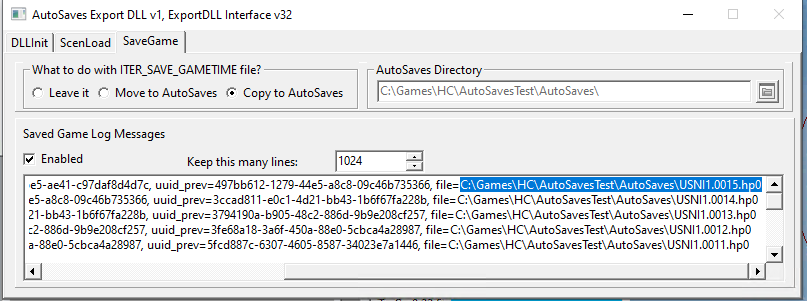
Purpose: Moves, Copies, or leaves alone each saved game file. In the move and copy cases, the saved game is moved to an AutoSaves directory immediately under the directory from which the scenario or saved game was loaded.
ex. If I load C:\Games\HC\MyOrd\Test1.SCm and have "Copy to AutoSaves" selected, when the game is saved, a copy of the saved game will be made under C:\Games\HC\MyOrd\AutoSaves\
To 'install', unzip the downloaded file to the ExportDLLs directory within your main game directory.
The window will appear once a scenario is loaded and will be behind your main HC window. This is to accommodate multi-monitor setups. You can get to it via the task bar.
What's New in Version v002
Released
AutoSaves 20230330 HC 2023.001+
Incremented Version to 2 from 1
Updated to Export DLL Interface v34 so that
the ExportDLL will work in HC 2023.001+.
Since it doesn't use HarpoonEvents, it will
continue to work with older versions of the game.