

Skip to content
View in the app

A better way to browse. Learn more.

HarpGamer

A full-screen app on your home screen with push notifications, badges and more.

To install this app on iOS and iPadOS
  1. Tap the Share icon in Safari
  2. Scroll the menu and tap Add to Home Screen.
  3. Tap Add in the top-right corner.
To install this app on Android
  1. Tap the 3-dot menu (⋮) in the top-right corner of the browser.
  2. Tap Add to Home screen or Install app.
  3. Confirm by tapping Install.

ExportDLL - GoogleEarth Viewer

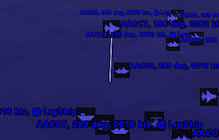
1 Screenshot

GoogleEarth.dll interface version 5, for GE 2009.042+


Runs a tiny webserver that serves a kml file to GoogleEarth on port 8183 to the local machine (and elsewhere if you do port forwarding).


Installation:

Extract ZIP with directories intact to your HC directory, the HCGoogleEarth.dll will end up in an ExportDLLs directory and a GoogleEarth directory will be created with each unit icon separated into its own file. See the Word document in the ZIP file for further instructions.


History:

01: 2007/09/28 Initial release that is HCE compatible.

02: 2009/02/10 Updated to be compatible with Google Earth 5.0. Also put subs underwater since Google Earth 5

supports that.

03: 2009/09/21 Allow connections other than LocalHost and changed from port 8180 to 8183.

04: 2009/09/22 Host unit icons at HarpGamer, further enabling connections from machines other than LocalHost

05: 2009/09/27 Implement zipping of the KML file to KMZ, results in much less network traffic.

What's New in Version 10/08/2009 08:57 PM

Released

No changelog available for this version.

With version 10/08/2009 08:57 PM:

Account

Navigation

Search

Search

Configure browser push notifications

Chrome (Android)
  1. Tap the lock icon next to the address bar.
  2. Tap Permissions → Notifications.
  3. Adjust your preference.
Chrome (Desktop)
  1. Click the padlock icon in the address bar.
  2. Select Site settings.
  3. Find Notifications and adjust your preference.