
Skip to content
View in the app

A better way to browse. Learn more.

HarpGamer

A full-screen app on your home screen with push notifications, badges and more.

To install this app on iOS and iPadOS
  1. Tap the Share icon in Safari
  2. Scroll the menu and tap Add to Home Screen.
  3. Tap Add in the top-right corner.
To install this app on Android
  1. Tap the 3-dot menu (⋮) in the top-right corner of the browser.
  2. Tap Add to Home screen or Install app.
  3. Confirm by tapping Install.

antonino

Members
  • Joined

  • Last visited

  1. antonino replied to TonyE's topic in General
    Would it be possible not to see the enemy forces? I have tried to minimize the window, but then if I wanted to maximize it where is it?
  2. antonino replied to TonyE's topic in General
    Fixed up! You have to take the file out of the MapWindow folder and copy it to the main folder: C:/Matrixgames/HUCE. I had copied the folder inside the directory, that's why it gave me an error. Now it works well. :-)
  3. antonino replied to TonyE's topic in General
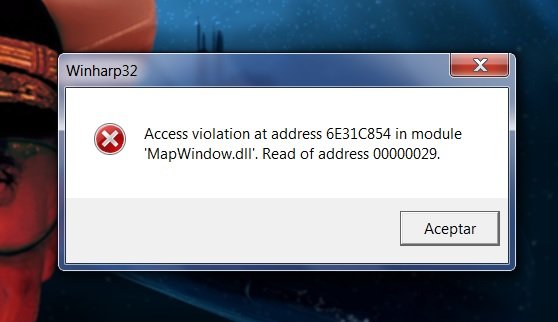
    Sorry to be the bearer of bad news. I have installed the application in the latest version of the program (downloaded from here). I put the Mapwindow folder inside C:/Matrix/HCU and the dll inside the exportdll folder. Do I need any third-party plugin? When I run the program I get this:
  4. I found the solution here: https://www.matrixgames.com/forums/viewtopic.php?f=11390&t=230296 Cool! Now to enjoy. Thanks guys.
  5. Dear friends: After years I have reinstalled the HUE. But since I have another operating system, Windows 7 64, I am running into some problems. One of them, in HUCE, is the Staff officer window. I can't see all the information and I don't have access to the options it offered you. I've tried changing the desktop resolution, but nothing. It is the only defect that I find, the rest seems to be going well. Is there any solution? Sorry if this doesn't go here. Thanks.

Account

Navigation

Search

Search

Configure browser push notifications

Chrome (Android)
  1. Tap the lock icon next to the address bar.
  2. Tap Permissions → Notifications.
  3. Adjust your preference.
Chrome (Desktop)
  1. Click the padlock icon in the address bar.
  2. Select Site settings.
  3. Find Notifications and adjust your preference.