




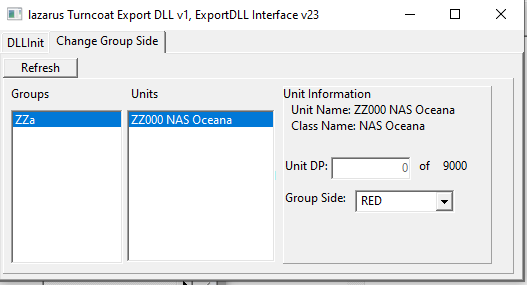
To use: Extract the files to your ExportDLLs folder then start the game. A separate window will appear. When a base/Installation is destroyed, you can refresh the list of groups on that separate window (the lazarus Turncoat window), select the group, unit, then choose the new side alignment. The unit will be undestroyed, runways re-established, and group's side changed.
HC ExportDLL for reviving destroyed Installations and switching the side to which they belong.
2020-06-10
Purpose:
for reviving destroyed Installations and potentially
switching the side to which they belong.
Original Author:
Anthony Eischens
Contributors:
Compiled with:
Lazarus 2.0.8
Third party controls:
Stratsims OSS shared pascal code
https://tarzan.tgp.net:8443/svn/StratsimsOSS/HC/shared/pascal/trunk
License:
MIT (see License.txt)
History:
lazTurncoat 20200824 HC 2020.009+
Incremented DLL Version to 1
Incremented DLL Interface version to 23
First version
The user should not switch the sides of an installation
until it is destroyed. This is to prevent orphaned Harpoon
Events and other game structures. If there is enough demand,
that limitation could be removed in the future.
What's New in Version 005
Released
lazTurncoat 20230331 HC 2023.001+
Incremented DLL Version to 5
No functionality change, just updated to
indicate ExportDLL interface v34 so
that the ExportDLL will work in HC 2023.001+