

Skip to content
View in the app

A better way to browse. Learn more.

HarpGamer

A full-screen app on your home screen with push notifications, badges and more.

To install this app on iOS and iPadOS
  1. Tap the Share icon in Safari
  2. Scroll the menu and tap Add to Home Screen.
  3. Tap Add in the top-right corner.
To install this app on Android
  1. Tap the 3-dot menu (⋮) in the top-right corner of the browser.
  2. Tap Add to Home screen or Install app.
  3. Confirm by tapping Install.

Docs - Scenario Editor in Windows XP Mode

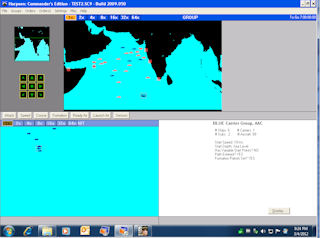
1 Screenshot

***Note, HC introduced a 32-bit SE in build 2014.011. If you have the current game, there is no need for the solution described in this file***


Document showing one way to use Windows XP Mode in Windows 7 64-bit to make the Scenario Editor useable in a very integrated fashion.


The document is divided into an introduction and then three phases. If you already have Windows XP Mode and Harpoon Ultimate Edition installed you can stkip right to Phase 3.


Suggestions welcome!

Account

Navigation

Search

Search

Configure browser push notifications

Chrome (Android)
  1. Tap the lock icon next to the address bar.
  2. Tap Permissions → Notifications.
  3. Adjust your preference.
Chrome (Desktop)
  1. Click the padlock icon in the address bar.
  2. Select Site settings.
  3. Find Notifications and adjust your preference.