




IMPORTANT
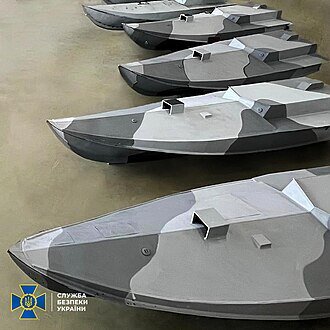
This scenario is meant to be run with the accompanying file Drone.DLL installed in the harpoon ExportDLL (or ExportDLL\GE) folder and requires vers HC2025.006 or newer and database HCDB2. This library file edits certain platforms' data so as to simulate high speed surface drone swarm(5 Drones), high speed semi submerged drone swarm (5) and Malay CB90 attack boats. It also starts of one ship with damaged ssm mounts.
The scenario is a demonstration of how recent changes to HUCE will allow an author writing scenarios for the Harpoon community to be able to customise platforms from simple aspects such as damaged mounts to more complex changes effectively introducing new platforms.
Swallow Reef (also known by many other names) is one of the larger islands of the Spratley Islands Group. It is occupied by Malaysia including a small naval presence and a tourist resort servicing primarily dive parties in the surrounding reefs.
Other countries lay claim to the island (and most in the Spratley Group) with many countries fishermen having been regular visitors for hundred of years.
Many of these islands have changed 'ownership' by various means including force over recent history, and undoubtedly this will continue form time to time.
What's New in Version 2.0.0
Released
A new Drone.DLL to overcome some erratic behaviour of the original (Thanks @broncepulido for reporting it)