




South Africa
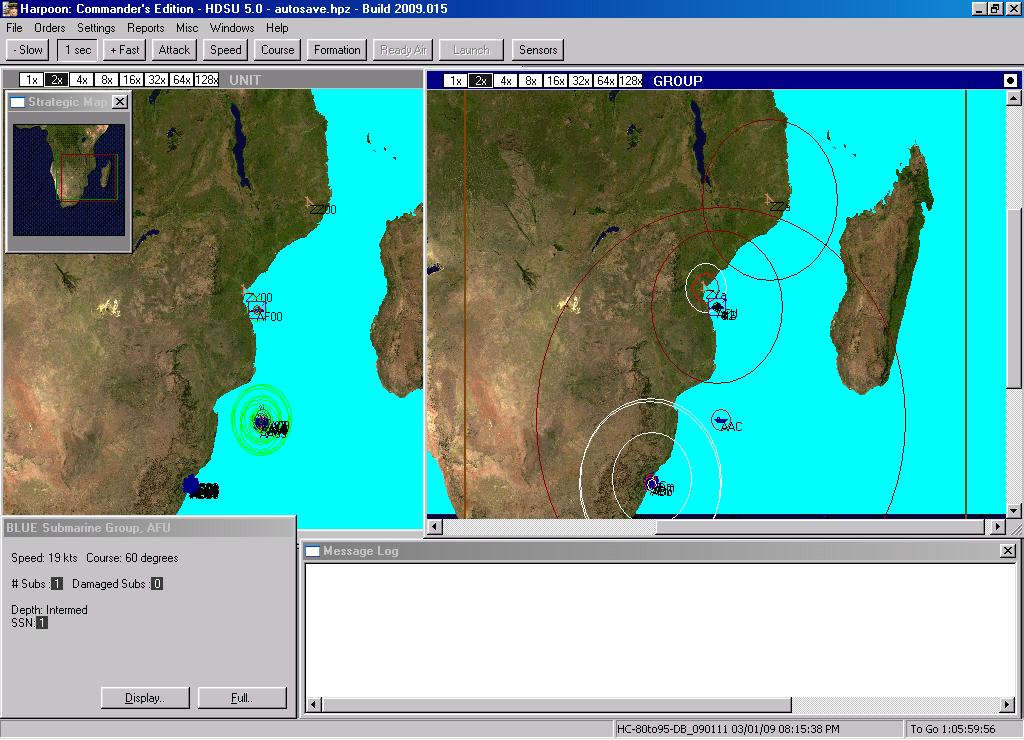
A Battleset for Harpoon Classic Commander´s Edition
Written by Réne Haar and Ralf Koelbach
It is 1988. South Africa is still governed by President Botha, who symbolizes the Apartheid-Regime. The country is shaken by riots and the state of emergency is declared.
South Africa´s neighbours are waiting for a chance to overthrow the Apartheid-Regime in Pretoria.
Meanwhile the Glasnost Era between the US and the USSR ends abruptly: few days after the Moscow Summit in May/June, Gorbachev is ousted by a Communist Coup.
All hopes for an end of the Cold War have gone to pieces within hours. The new strong man is Secretary Ligatschow. He vows to reestablish "law and order" and to strengthen Communism all over the world.
The US Government led by President Reagan is caught by surprise. US forces have to be quickly repositioned and prepared for what may come.
But where will the USSR start to reestablish its tight grip?
The Politburo chooses South Africa. Large parts of the Red Fleet are already in this area. South Africa is an outlaw in the Western World because of its Apartheid Regime. Its strategical importance is obvious.
Its neighbours will support any attack on the Regime.
Thus the Soviets draw their plan.
By chance there is one US Carrier Battlegroup in the area.
And so an epic battle starts.