




Svalbard Oil Battleset
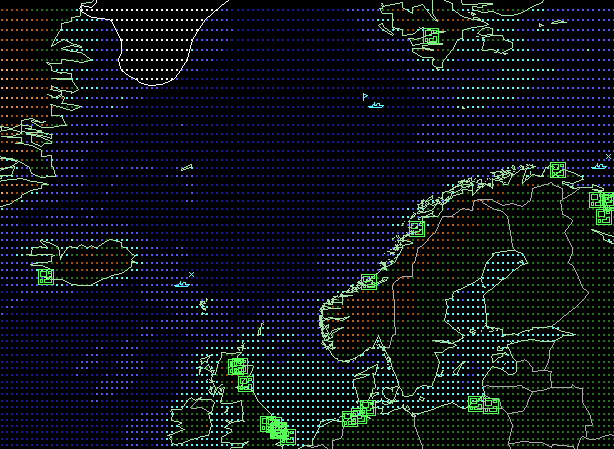
The discovery of the third largest oil and gas reserves on the planet near the Svalbard Islands led to a dispute with Russia, who has mining rights and maintains settlements on Spitsbergen, claiming that the islands belong to the chain of islands of Franz Josef Land.
Svalbard Oil 2: NATO Strikes Back
The attempt of the Royal Norwegian Navy to settle the dispute over the Svalbard Islands with rather limited resources was a failure, though the two Norwegian submarines managed to sink two warships before being sunk themselves.
NATO reaction is quick, aggressive and resourceful: A British CVBG, a Dutch PHIBRON and a German SAG are sailing towards the Svalbards, supported by a number of nuclear and diesel attack submarines. The message is evident: Europe wants to show it can deal with the crisis without the help of the policeman from across the Atlantic, though there are some U.S. units and aircraft in the area ready to assist.
But the Russian resolve will soon become apparent. Russia has every intention to keep her occupied new territories as well as the vast oil and gas reserves discovered there and has mobilized everything still available in her military inventory to do so.
These scenarios have been tested with the Harpoon 3.6 game engine, but not Harpoon: ANW. No warranty or representation regarding compatibility or function with ANW is given or implied.
This scenario requires the Y2k Database which can be found:
http://www.harpoonhq.com/harpoon3/scenario...2000v10_0_0.zip