Skip to content
View in the app

A better way to browse. Learn more.

HarpGamer

A full-screen app on your home screen with push notifications, badges and more.

To install this app on iOS and iPadOS
  1. Tap the Share icon in Safari
  2. Scroll the menu and tap Add to Home Screen.
  3. Tap Add in the top-right corner.
To install this app on Android
  1. Tap the 3-dot menu (⋮) in the top-right corner of the browser.
  2. Tap Add to Home screen or Install app.
  3. Confirm by tapping Install.

Scenarios

3 files

  1. This is a scenario to play the Iron Bottom Sound scenario from the Command at Sea Jumpstart.  This is my first time working with SimPlot, so any input would be greatly appreciated.
    • 144 Downloads
    Submitted
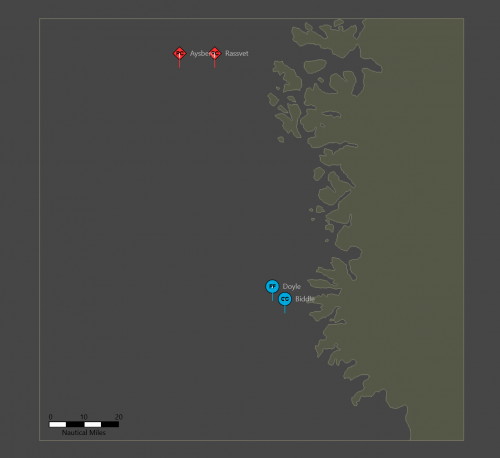
  2. This is the SimPlot setup file for the Harpoon V scenario "Bugout" that is featured in The Naval SITREP issue #60 (April 2021).
    The installations are on the map, but the ships are not. This way, players may choose where to place them.
    All the naval ships and missiles that may be used in the scenario are importable, and are located in the Units folder.
    Civilian ships are an optional rule, but they are not included in the Units folder. They are very simple to create, with the only differences being the type and maximum speed (and size class, but that is not tracked in SimPlot).
    This scenario is compatible with SimPlot version 2.1.1.
    • 199 Downloads
    Updated
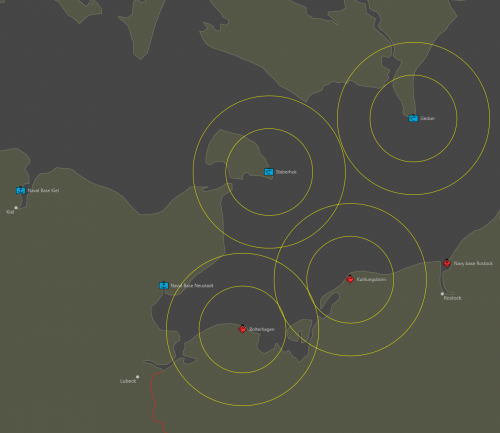
  3. Guardian is the scenario featured in the Harpoon V Jumpstart guide.  The included map is a standard SimPlot version, unlike the Jumpstart version which was modified for printer-friendly colors.
    All the units (ships, helicopter, and missiles) that could be used in the scenario are pre-built and ready to be imported when needed.
    • 410 Downloads
    Submitted

Account

Navigation

Search

Search

Configure browser push notifications

Chrome (Android)
  1. Tap the lock icon next to the address bar.
  2. Tap Permissions → Notifications.
  3. Adjust your preference.
Chrome (Desktop)
  1. Click the padlock icon in the address bar.
  2. Select Site settings.
  3. Find Notifications and adjust your preference.